Courses in this Program:


Communication Tips
In order to lead or manage others, you need to master your communication skills. In this series of tips, communication experts Tatiana ...

Project Management Foundations
Project management is a set of techniques that anyone can apply to achieve goals and make projects more successful. Project managemen...

JavaScript Essential Training
JavaScript is a scripting language of the web. As the web evolves from a static to a dynamic environment, technology focus is shiftin...

Git: Branches, Merges, and Remotes
Git—the popular and free version control software—unlocks powerful code management tools, including branching, merging, and remote re...

Git for Teams
Development teams transitioning to distributed source control with Git often experience friction when initially adopting the tool. O...

Git Intermediate Techniques
Enhance your Git skillset, and explore intermediate techniques and concepts that can help you work more efficiently with the popular ...

Time managment
Effective time management is an indispensable skill. Best-selling author and business coach Dave Crenshaw lays the theoretical and pr...

REST API
Learn the basics of REST APIs. In this course, discover what REST APIs are, why they matter, and how putting them to use can help you...
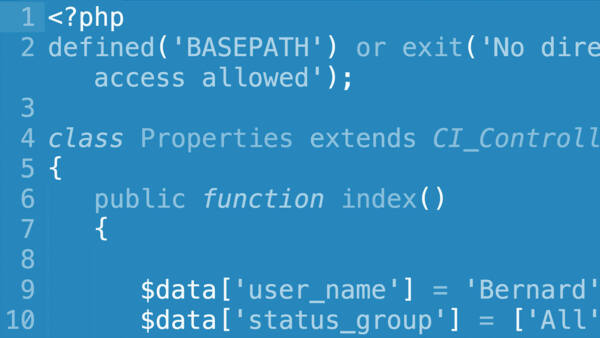
Learning CodeIgniter 3
Speed up your development with CodeIgniter, a fast and powerful PHP web application framework. Starting with the what and the why, in...
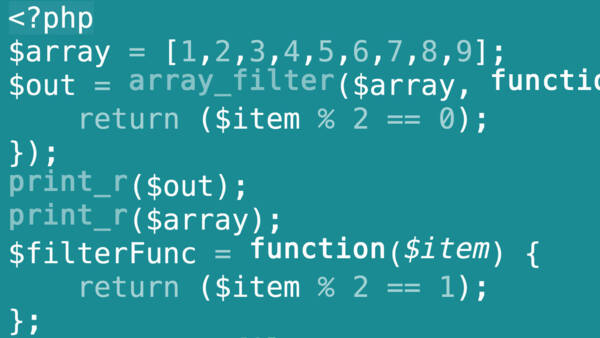
Advanced PHP
Implement namespaces, extend interfaces, create your first Trait, dive into object-oriented programming, and discover versatile scrip...

Git Essential Training: The Basic
Learn how to use Git, the popular open-source version control software, to manage the source code for almost any project. In this cou...
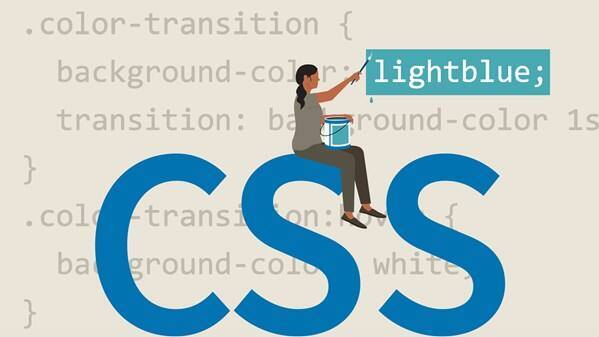
CSSEssential Training
Cascading Style Sheets (CSS) is a stylesheet language that allows you to control the appearance of your webpages. In this hands-on co...

Online Marketing Foundations
Learn how to promote your business effectively online and develop a targeted online marketing strategy that engages potential custome...

Offline Marketing Foundations
Offline marketing isn't dead—it's a core skill that all marketers need to understand. Offline marketing, also known as traditional ma...

Spinrewriter tutorial

Growth Hacking Foundations
Growth hacking is an emerging technique that helps marketers generate new ideas and accelerate sales and customer acquisition. Growth...

Learning PHP
PHP is the most popular server-side language used to build dynamic websites, and though it is not especially difficult to use, nonpro...

Managing Your Calendar for Peak Productivity
You can manage your time more effectively by learning how to leverage the features of your calendar. In this course, best-selling aut...

Technical WordPress SEO
Want to improve the search ranking of your WordPress site? Optimize it from the inside out. Learn technical SEO techniques that enhan...

Writing Email
Discover the secrets to writing powerful emails your colleagues will read and answer by crafting your message and delivery. In this s...

Visual Studio 2019 Essential Training
Integrated development environments (IDE) make it faster and easier to write high-quality code. Visual Studio, the IDE from Microsoft...

Visual Studio Developer Tips
Discover tips and techniques that can make working in Microsoft Visual Studio simpler, faster, and more interesting. In this series, ...

Marketing Tools: SEO
Today's marketing professionals have a wide array of SEO tools at their disposal. With so many options, choosing the right tools for ...

TortoiseGit Tutorial

SEOforSolopreneurs
Lessons in Virtualmin -Basics :
-
1 1. Introduction
-
2 2. Installation
-
3 3. Login into Virtualmin
-
4 4. Navigation Options
-
5 5. Virtualmin Settings
Lessons in Communication Tips:
-
1 Welcome to the series
-
2 Understanding introversion and extroversion
-
3 Entering and exiting a conversation
-
4 Building rapport
-
5 Connecting through questions
-
6 Having empathy
-
7 Persuading people
-
8 Tactful bragging
-
9 Negotiating your needs
-
10 Communicating assertively
-
11 Building authenticity
-
12 Telling stories
-
13 Making your message stick
-
14 Communicating with confidence
-
15 Using influence
-
16 Making a request
-
17 Making small talk
-
18 Dealing with interrupters
-
19 Saying no
-
20 Giving constructive criticism
-
21 Speaking on no notice
-
22 Asking at work
-
23 Building consensus
-
24 Redirecting gossip
-
25 Succeeding in a video conference
-
26 Exploring team roles
-
27 Communicating with Gen Y
-
28 Preparing for interview
-
29 Reducing your anxiety about public speaking
-
30 Communicating authentically as a leader
-
31 Finding your best voice
-
32 Teaching others how to do a task
-
33 Communicating remotely
-
34 Asking great questions
-
35 The Power of Pause
-
36 Team charters
-
37 Tools for virtual teams
-
38 Communicating with accuracy
-
39 Making a recommendation
-
40 Working with a bully
-
41 American English tricks and traps
-
42 Speaking at special occasions
-
43 Making introductions
-
44 Giving feedback
-
45 Managing older employees
-
46 Communicating with multiple bosses
-
47 Orienting new employees
-
48 The things your things say
-
49 Communicating credibility
-
50 Communicating change
-
51 Making decisions differently: Head vs. heart
-
52 Making decisions differently: Being type vs. action type
-
53 Making decisions differently: Trees vs. forests
-
54 Exercise Files
Lessons in Project Management Foundations:
-
1 Deliver successful projects
-
2 What you should know
-
3 What is a project?
-
4 What is project management?
-
5 What it takes to be a project manager
-
6 The project management life cycle
-
7 Traditional vs. agile project management
-
8 How organizational structure affects projects
-
9 How organizational culture affects projects
-
10 Project management software options
-
11 Challenge: Organization
-
12 Initiate a project
-
13 Identify project stakeholders
-
14 Analyze project stakeholders
-
15 Identify the project goal
-
16 Define project objectives
-
17 Choose a strategy
-
18 Gather requirements
-
19 Identify project deliverables and success criteria
-
20 Identify project assumptions and risks
-
21 Prepare a project scope statement
-
22 Create a project charter
-
23 Challenge: Project charter
-
24 Project planning overview
-
25 What is a work breakdown structure?
-
26 Build a work breakdown structure
-
27 How to create work packages?
-
28 Estimate time and cost
-
29 How to choose the best estimate
-
30 Create a resource management plan
-
31 Build a project schedule
-
32 Develop a project budget
-
33 Identify risks
-
34 Create a risk management plan
-
35 Set up a communication plan
-
36 Develop a quality plan
-
37 How to set up a change management plan
-
38 How to plan procurement
-
39 Processes for procuring resources
-
40 How to obtain approval to proceed
-
41 Challenge: Change
-
42 Put tasks in sequence
-
43 How to assign resources to tasks
-
44 Learn to use milestones
-
45 Make a realistic schedule
-
46 Understand the critical path
-
47 Understand the critical chain method
-
48 How to shorten a schedule
-
49 Document the baseline
-
50 Challenge: Network diagram
-
51 What is agile project management?
-
52 The agile project management life cycle
-
53 Plan an iteration
-
54 Manage the explore stage
-
55 Handle the adapt and close stages
-
56 Challenge: Agile
-
57 How to run a project
-
58 Techniques for communicating effectively
-
59 Run effective meetings
-
60 Challenge: Agenda
-
61 Manage team resources
-
62 Understand team dynamics
-
63 How to manage virtual teams
-
64 How to manage technical teams
-
65 Challenge: Team
-
66 How to gather data
-
67 How to manage project change
-
68 Learn how to manage project scope
-
69 Monitor and control risks
-
70 Understand earned value analysis
-
71 Evaluate progress
-
72 Learn how to solve problems
-
73 How to get a project back on track
-
74 Challenge: Change request
-
75 Close a project
-
76 How to obtain customer acceptance
-
77 Document lessons learned
-
78 How to prepare a close-out report
-
79 Learn how to close and transition projects
-
80 Challenge: Acceptance
-
81 Next steps
-
82 Assignments
Lessons in JavaScript Essential Training:
-
1 Welcome
-
2 How to use the exercise files
-
3 What is JavaScript?
-
4 How does JavaScript relate to Java?
-
5 Navigating the JavaScript landscape
-
6 Tools for JavaScript development
-
7 Introducing the browser console
-
8 Add inline JavaScript to a HTML document
-
9 Add JavaScript in an external file
-
10 How to write JavaScript: A crash course
-
11 Variables: The catch-all containers of JavaScript
-
12 Data types in JavaScript
-
13 Arithmetic operators and math
-
14 Working with strings and numbers
-
15 Conditional statements and logic
-
16 Advanced conditions and logic
-
17 Arrays
-
18 Properties and methods in arrays
-
19 Functions in JavaScript
-
20 Build a basic function
-
21 Add arguments to the function
-
22 Return values from a function
-
23 Anonymous functions
-
24 Immediately invoked functional expressions
-
25 Variable scope
-
26 ES2015: let and const
-
27 Make sense of objects
-
28 Object constructors
-
29 Sidebar: Dot and bracket notation
-
30 Closures
-
31 DOM: The document object model
-
32 Target elements in the DOM with querySelector methods
-
33 Access and change elements
-
34 Access and change classes
-
35 Access and change attributes
-
36 Add DOM elements
-
37 Apply inline CSS to an element
-
38 Create an analog clock: Project breakdown
-
39 Use CSS to move clock hands
-
40 Use JavaScript to move clock hands
-
41 Get the current hour, minute, and second with the Date() object
-
42 Show the current time using fancy math
-
43 Make the clock move forward second by second
-
44 Solve the pesky "return to zero" problem
-
45 What are DOM events?
-
46 Some typical DOM events
-
47 Trigger functions with event handlers
-
48 Add and use event listeners
-
49 Pass arguments via event listeners
-
50 Rundown of HTML markup
-
51 Use event listeners to detect typing
-
52 Build a count-up timer
-
53 Build a helper function for leading zeros
-
54 Detect spelling errors by matching strings
-
55 Stop the timer when the test is done
-
56 Add a reset button
-
57 Loops
-
58 Looping through arrays
-
59 Break and continue loops
-
60 Project breakdown
-
61 Rundown of project setup
-
62 Loop through all images in the document
-
63 Create function to generate srcset value
-
64 Create object containing different sizes values
-
65 Update img markup with srcset and sizes attributes
-
66 JavaScript validation and troubleshooting
-
67 Troubleshooting JavaScript
-
68 Step through your JavaScript with browser tools
-
69 Online script linting
-
70 Automate script linting
-
71 Online script minification
-
72 Automate script minification
-
73 What are arrow functions?
-
74 What do I learn first? JavaScript? TypeScript?
-
75 How do I write strings in ES2015?
-
76 What does the % symbol do?
-
77 Why use the querySelector() and querySelectorAll() methods?
-
78 Next Steps
-
79 Assignments
Lessons in Git: Branches, Merges, and Remotes:
-
1 Unlock powerful code management and collaboration tools in Git
-
2 What you should know
-
3 Reference commits
-
4 Ancestry
-
5 Tree listings
-
6 Filter the commit log
-
7 Format the commit log
-
8 Branching overview
-
9 Create branches
-
10 Switch branches
-
11 Create and switch branches
-
12 Switch branches with uncommitted changes
-
13 Compare branches
-
14 Rename branches
-
15 Delete branches
-
16 Configure command prompt
-
17 Reset types
-
18 Soft reset
-
19 Mixed reset
-
20 Hard reset
-
21 Merge code
-
22 Fast-forward merge vs. true merge
-
23 Merge conflicts
-
24 Resolve merge conflicts
-
25 Strategies to reduce conflicts
-
26 Save changes in the stash
-
27 View stashed changes
-
28 Retrieve stashed changes
-
29 Delete stashed changes
-
30 Local and remote repositories
-
31 Set up a GitHub account
-
32 Add a remote repository
-
33 Create a remote branch
-
34 Clone a remote repository
-
35 Track remote branches
-
36 Push changes to a remote repository
-
37 Fetch changes from a remote repository
-
38 Merge in fetched changes
-
39 Check out remote branches
-
40 Push to an updated remote branch
-
41 Delete a remote branch
-
42 Enable collaboration
-
43 Collaboration workflow
-
44 Next Steps
-
45 Assignments
Lessons in Git for Teams:
-
1 Using Git for team collaboration
-
2 What you need to know
-
3 Fundamentals of Git collaboration overview
-
4 Common pitfalls: Untracked pulls
-
5 Common pitfalls: Force push
-
6 Best practices: Committing and syncing
-
7 Best practices: gitignore
-
8 Standardize line endings with autocrlf
-
9 Branch naming
-
10 Write descriptive commit messages
-
11 Team composition and members roles
-
12 Teaming with remote platforms overview
-
13 Remote platform selection
-
14 GitLab installation
-
15 GitLab overview
-
16 User account setup
-
17 Account administration and preferences
-
18 Branching strategies
-
19 Git workflows
-
20 Trunk-based development
-
21 Git flow
-
22 Protecting branches
-
23 Issues
-
24 Feature branches
-
25 Code reviews
-
26 Merging feature branches
-
27 Git Flow wrap-up
-
28 Continuous integration with Git
-
29 Tools for continuous integration
-
30 Install GitLab Runner
-
31 Register GitLab Runner
-
32 Building a CI pipeline
-
33 Automating units tests for quality assurance
-
34 Code quality with pipelines
-
35 Building a DevOps foundation
-
36 Next Steps
-
37 Assignments
Lessons in Git Intermediate Techniques:
-
1 Welcome
-
2 How to use the exercise files
-
3 Force push to a remote
-
4 Identify merged branches
-
5 Delete local and remote branches
-
6 Prune stale branches
-
7 Create tags
-
8 List tags
-
9 Delete tags
-
10 Push tags to a remote
-
11 Check out tags
-
12 Interactive mode
-
13 Patch mode
-
14 Split a hunk
-
15 Edit a hunk
-
16 Cherry-picking commits
-
17 Resolve cherry-picking conflicts
-
18 Create diff patches
-
19 Apply diff patches
-
20 Create formatted patches
-
21 Apply formatted patches
-
22 Rebase commits
-
23 Perform a rebase
-
24 Merging vs. rebasing
-
25 Resolve rebase conflicts
-
26 Rebase onto other branches
-
27 Undo a rebase
-
28 Interactive rebasing
-
29 Squash commits
-
30 Pull rebase
-
31 Log options
-
32 Blame
-
33 Bisect
-
34 Next Steps
Lessons in Time managment:
-
1 Welcome
-
2 Using the exercise files
-
3 Microsoft Office option
-
4 Getting the most from this course
-
5 Understanding the focus chaos scale
-
6 Finding your personal motivation for lasting change
-
7 Addressing the myth of multitasking
-
8 Understanding the consequences of multitasking
-
9 Understanding the three principles of productivity
-
10 Taking an inventory of your gathering points
-
11 Narrowing your gathering points
-
12 Setting up an inbox gathering point
-
13 Working with a portable inbox
-
14 Getting the most from the notepad
-
15 Consolidating multiple email accounts
-
16 Consolidating multiple voicemail accounts
-
17 Establishing a wild card gathering point
-
18 Separating work and personal gathering points
-
19 Taking the next step to controlling your space
-
20 Selecting your mind clearing options
-
21 Clearing your mind of its to-dos with mental triggers
-
22 Setting a mind-clearing schedule
-
23 Taking the next step to keeping your mind clear
-
24 Choosing the right calendar for you
-
25 Using your calendar effectively
-
26 Saying no to others
-
27 Saying no to yourself
-
28 Preparing for action
-
29 Preparing to gather
-
30 Gathering to your inbox: Desk
-
31 Gathering to your inbox: Elsewhere
-
32 Mastering the what, when, where processing system
-
33 Processing question 1: What is the next step?
-
34 Processing question 2: When will it be done?
-
35 Processing question 3: Where is its home?
-
36 Filing made simple
-
37 Digital filing made simple
-
38 Processing your first inbox
-
39 Setting your processing schedule
-
40 Applying what, when, where processing to email
-
41 Setting up an email archive folder
-
42 Creating email rules or filters
-
43 Processing an email walk-through
-
44 Processing email vs. checking email
-
45 Understanding “work time” vs. “you time”
-
46 Establishing the most valuable activities
-
47 Identifying your most valuable activities
-
48 Budgeting time for your most valuable activities
-
49 Using your time budgeter
-
50 Maintaining your productivity gains
-
51 Bonus-Dave-Crenshaw-on-getting-himself-organized
Lessons in REST API:
-
1 Welcome
-
2 The RESTful librarian
-
3 What is a REST API?
-
4 Sidebar: URL vs. URI
-
5 The six constraints of REST
-
6 How REST relates to HTTP
-
7 Who or what interacts with REST APIs?
-
8 Tools to see REST API in action
-
9 Anatomy of a REST request
-
10 Discovery
-
11 Resource
-
12 Methods (Verbs)
-
13 Response header
-
14 HTTP status messages
-
15 REST and Authorization/Authentication
-
16 Request/response pairs
-
17 GET
-
18 POST
-
19 PUT/PATCH
-
20 DELETE
-
21 Next step
Lessons in Learning CodeIgniter 3:
-
1 Welcome
-
2 What you should know
-
3 Using the exercise files
-
4 What is CodeIgniter?
-
5 Set up our local environment
-
6 The MVC architectural pattern
-
7 Get CodeIgniter running
-
8 Load views and data from controllers
-
9 Controllers and automatic routing
-
10 Create models and load them
-
11 Help yourself with helpers
-
12 Database configuration
-
13 Autoload components
-
14 Use models and databases
-
15 Database actions on a table
-
16 Work with forms
-
17 Update forms
-
18 Work with sessions
-
19 Work with browser headers
-
20 Handle file uploads
-
21 Form validation
-
22 Form update with validation
-
23 Logging and error logging
-
24 CodeIgniter and Composer
-
25 Install an existing application
-
26 Next steps
Lessons in Advanced PHP:
-
1 Welcome
-
2 What you should know
-
3 How to use the exercise files
-
4 PHP namespaces overview
-
5 Use PHP namespaces
-
6 Composer overview
-
7 PHP interfaces overview
-
8 Create an interface
-
9 Extend an interface
-
10 PHP standard interfaces
-
11 PHP Traits overview
-
12 Create a Trait
-
13 PHP magic methods
-
14 PHP constructors and deconstructors
-
15 PHP singletons
-
16 PHP abstract classes overview
-
17 Create an abstract class
-
18 PHP Iterator overview
-
19 Create an iterator
-
20 Stacking iterators
-
21 SPL iterators
-
22 PHP generator overview
-
23 Create a generator
-
24 PHP password hashing
-
25 PHP password verification
-
26 Update PHP passwords
-
27 Basic PHP type hints
-
28 PHP strict type declarations
-
29 PHP return types
-
30 PHP closure overview
-
31 Create a closure
-
32 Advanced closures
-
33 PHP exception overview
-
34 Throw an exception
-
35 Nested exceptions
-
36 PHP SPL exceptions
-
37 Extend PHP exceptions
-
38 Finally block
-
39 Next steps
Lessons in Git Essential Training: The Basic:
-
1 Use Git version control software to manage project code
-
2 Version control
-
3 The history behind Git
-
4 About distributed version control
-
5 Install Git on a Mac
-
6 Install Git on Windows
-
7 Install Git on Linux
-
8 Basic Git configuration
-
9 Git auto-completion
-
10 Git help
-
11 Initialize a repository
-
12 Where Git files are stored
-
13 Your first commit
-
14 Write a commit message
-
15 View the commit log
-
16 The three trees
-
17 Git workflows
-
18 Hash values (SHA-1)
-
19 The HEAD pointer
-
20 Add files
-
21 Edit files
-
22 View changes with diff
-
23 View only staged changes
-
24 Delete files
-
25 Move and rename files
-
26 The Explore California website
-
27 Initialize Git
-
28 View file edits
-
29 Stage and commit shortcut
-
30 View a commit
-
31 Compare commits
-
32 Multiline commit messages
-
33 Make atomic commits
-
34 Challenge: Client edits
-
35 Solution: Client edits
-
36 Undo working directory changes
-
37 Unstage files
-
38 Amend commits
-
39 Retrieve old versions
-
40 Revert a commit
-
41 Remove untracked files
-
42 Use .gitignore files
-
43 Ideas on what to ignore
-
44 Globally ignore files
-
45 Ignore tracked files
-
46 Track empty directories
-
47 Next steps
Lessons in CSSEssential Training:
-
1 Styling documents consistently
-
2 What you should know
-
3 Tools and sample projects
-
4 HTML and CSS
-
5 Browser developer tools
-
6 Referencing CSS
-
7 Project overview and setup
-
8 Optimizing images and retina displays
-
9 Project: Relative paths
-
10 Absolute paths
-
11 CSS specifications and the W3C
-
12 CSS syntax and terminology
-
13 CSS values and units
-
14 The color and property values
-
15 Type and universal selectors
-
16 Class and ID selectors
-
17 Class and ID selector exercise
-
18 Descendant selectors
-
19 Grouping selectors
-
20 Inheritance and specificity
-
21 The cascade and importance
-
22 Project: Adding colors
-
23 Pseudo-class selectors and links
-
24 Project: Styling links
-
25 Introduction to the box model
-
26 Inline, block, and display
-
27 The box model properties
-
28 The box properties syntax and usage
-
29 Debugging the box model
-
30 Padding, margin, and border
-
31 Margin and layouts
-
32 Project: Adding content wrappers
-
33 Project: Margin and padding
-
34 Typography for the web
-
35 Changing the font-family
-
36 Font-weight and font-style
-
37 Web fonts with @font-face
-
38 Web fonts with Google Fonts
-
39 Project: Google Fonts
-
40 The font-size property
-
41 Font shorthand
-
42 Text-decoration, text-align, and line-height
-
43 Project: Typography styles
-
44 Introduction to float
-
45 The float and clear properties
-
46 Float and collapsed container
-
47 Layouts and the box model
-
48 Project: Float and box model fix
-
49 Position
-
50 Position and z-index
-
51 Introduction to Grid and Flexbox
-
52 Introduction to Flexbox
-
53 Flexbox: Orientation and ordering
-
54 Flexible sizing
-
55 Flexbox exercise
-
56 Flexbox: Alignment
-
57 Project: Flexbox alignment
-
58 Introduction to CSS Grid
-
59 The explicit grid
-
60 The implicit grid
-
61 Grid placement properties
-
62 Project: Grid columns and Firefox Grid Inspector
-
63 Introduction to advanced selectors
-
64 Relational selectors: Combinators
-
65 Project: Updates with combinators
-
66 Pseudo-class selectors: First and last
-
67 Project: Advanced selectors
-
68 Introduction to responsive design
-
69 Project: Creating fluid layouts
-
70 Flexible background images
-
71 Project: Flexible background image
-
72 Introduction to media queries
-
73 Media queries, widths, and breakpoints
-
74 Testing responsive layouts
-
75 Project: Media queries and responsive layout
-
76 Next steps
Lessons in Online Marketing Foundations:
-
1 Connecting with customers online
-
2 What is online marketing?
-
3 The importance of defining three strategies
-
4 Building a business strategy
-
5 Building a brand strategy
-
6 Building a marketing strategy
-
7 Definitions and terminology
-
8 Components of digital marketing
-
9 The digital marketing landscape
-
10 The marketing funnel
-
11 The buyer journey
-
12 What makes a website effective?
-
13 Choosing a domain name
-
14 Selecting a designer or developer
-
15 Building a site yourself
-
16 Making your website convert
-
17 Creating engaging web copy
-
18 Choosing responsive design
-
19 Introduction to measuring data
-
20 How online analytics work
-
21 Tracking your campaigns
-
22 Using goal tracking
-
23 Looking at a conversion funnel
-
24 Defining your KPIs
-
25 A look at attribution models
-
26 How SEO works
-
27 Essential optimization techniques
-
28 Configuring Google Search Console
-
29 Conducting keyword research
-
30 Conducting a quick site audit
-
31 Crafting a content strategy
-
32 Leveraging local SEO
-
33 Choosing to hire a professional
-
34 Introduction to search and display
-
35 Signing up for an AdWords account
-
36 Understanding the AdWords structure
-
37 Launching text search ads
-
38 Launching display search ads
-
39 Deciding on your budget
-
40 A look at reporting
-
41 Generating reports
-
42 Building a social media marketing plan
-
43 Who's using social media?
-
44 Marketing with Facebook
-
45 Marketing with Twitter
-
46 Marketing with LinkedIn
-
47 Marketing with Pinterest
-
48 The impact of video marketing
-
49 Getting started with video marketing
-
50 Creating compelling content
-
51 Promoting videos on YouTube
-
52 Understanding email marketing
-
53 Creating an email marketing plan
-
54 Tools to launch successful campaigns
-
55 Measuring the success of email
-
56 What is content marketing?
-
57 Creating a content planning model
-
58 The mobile marketing landscape
-
59 Mobile applications
-
60 Running A/B marketing tests
-
61 Introduction to influencer marketing
-
62 Finding and engaging influencers
-
63 Next steps
Lessons in Offline Marketing Foundations:
-
1 Is traditional marketing dead?
-
2 What is offline marketing?
-
3 Pros and cons of offline marketing
-
4 How offline marketing is used alongside online marketing
-
5 Keys to offline marketing success
-
6 Audience development
-
7 Deciding how much to spend
-
8 Tracking offline marketing ROI
-
9 Direct mail overview
-
10 Direct mail best practices
-
11 Budgeting for direct mail
-
12 Mailing lists
-
13 Printing and distribution
-
14 Trade shows
-
15 Meetups
-
16 Speaking opportunities
-
17 Parties
-
18 Promotional giveaways
-
19 Introduction to print advertising
-
20 Staying top of mind with print
-
21 Designing great print advertisements
-
22 Business cards
-
23 Newspaper and print ads
-
24 Flyers and banners
-
25 Magazine ads
-
26 Billboards
-
27 Door hangers
-
28 Coupons
-
29 TV advertising
-
30 Radio advertising
-
31 Producing a TV or radio ad
-
32 Strategic marketing alliances
-
33 Getting media mentions
-
34 Sign spinners
-
35 Guerrilla marketing
-
36 Sponsorships
-
37 Contests
-
38 Curbside advertising
-
39 Exploring marketing further
Lessons in Spinrewriter tutorial:
-
1 Spinrewriter Steps
-
2 Get-Started-Tutorial-Spin-Rewriter
-
3 How to rewrite an article from start to finish
-
4 How to spin multiple articles at once bulk spinning
-
5 How to use One Click Rewrite all settings explained in detail
-
6 How to spin articles manually words and phrases in Step 2 Spin
-
7 How to polish a finalized article to perfection in Step 3
-
8 How Aaron personally uses Spin Rewriter BEST settings recommended
-
9 How to add relevant images and videos to your unique articles
-
10 How to manually add alternative sentences and paragraphs in Step 1
-
11 How to automatically rewrite sentences in Step 1 ENL
-
12 How to automatically rewrite paragraphs in Step 1 ENL
-
13 How to export hundreds of unique articles
-
14 How to use the Archive plus a hidden trick
Lessons in Growth Hacking Foundations:
-
1 Grow your business with growth marketing
-
2 What is growth hacking?
-
3 History and evolution of growth hacking
-
4 Goals of growth hacking in marketing
-
5 How to be a growth hacking leader
-
6 A disclaimer on growth hacking
-
7 The agile growth hacking process
-
8 Leading and building growth teams
-
9 Using customer interviews
-
10 Who are your customers?
-
11 Communicating your North Star metric
-
12 What are OKRs and how are they used?
-
13 How to lead an OKR strategy session
-
14 Using the Lean Canvas for marketing
-
15 Drafting your Lean Canvas
-
16 The digital marketing and sales funnel
-
17 What is the customer journey
-
18 Mapping the customer journey
-
19 Excel through the customer journey
-
20 What are marketing growth levers?
-
21 Identifying marketing growth levers
-
22 What are growth loops?
-
23 Growth loop examples
-
24 Management of the product life cycle
-
25 Technology adoption life cycle
-
26 Excel through the product life cycle
-
27 Evaluating product market fit
-
28 Growth process in action
-
29 Generating ideas and team communication
-
30 ICE for project and time management
-
31 Failure and maintaining a positive outlook
-
32 Digital marketing fatigue
-
33 Leverage your customers to improve sales
-
34 Retain your users to improve sales
-
35 Data-driven growth marketing
-
36 Exclusivity as a sales strategy
-
37 API integrations
-
38 Key data metrics to track and report
-
39 Monthly recurring revenue (MRR)
-
40 Churn rate
-
41 Measure customer acquisition cost (CAC)
-
42 Next steps
Lessons in Learning PHP:
-
1 Welcome
-
2 What you should know before watching this course
-
3 Using the exercise files
-
4 What's new in this version of the course
-
5 Running phpinfo() to check the PHP configuration
-
6 Changing configuration settings in php.ini
-
7 Alternative ways to change configuration settings
-
8 PHP: The big picture
-
9 Choosing and naming variables
-
10 Displaying text and numbers
-
11 Comments and white space
-
12 What's the difference between single and double quotes?
-
13 Joining strings
-
14 Using heredoc syntax to avoid problems with quotes
-
15 Storing multiple values in an indexed array
-
16 Storing values in an associative array
-
17 Challenge: Embedding PHP in HTML
-
18 Solution: Embedding PHP in HTML
-
19 The truth according to PHP
-
20 Making decisions with conditions and comparisons
-
21 Alternative syntax for conditional statements
-
22 Making decisions with a switch statement
-
23 Using the ternary operator as shorthand
-
24 Setting a default value
-
25 Challenge: Serving different content to members
-
26 Solution: Serving different content to members
-
27 Arithmetic operators
-
28 Reassigning the result of a calculation to the same variable
-
29 Increasing or decreasing a number by one
-
30 Challenge: Integer division
-
31 Solution: Integer division
-
32 Repeating actions with while and do/while loops
-
33 Using a for loop
-
34 Looping through an array with foreach
-
35 Alternative syntax for loops
-
36 Challenge: Multiplication table
-
37 Solution: Multiplication table
-
38 Using PHP's built-in functions
-
39 Understanding PHP documentation
-
40 Creating custom functions
-
41 Passing arguments by value and reference to a function
-
42 Using an anonymous function as a callback
-
43 Understanding PHP objects and classes
-
44 Comparing the date() function with the DateTime class
-
45 Challenge: Create a function to display copyright years
-
46 Solution: Create a function to display copyright years
-
47 Using server-side includes
-
48 Using include and require
-
49 Using links in an include file
-
50 Examining the include_path
-
51 Challenge: Use server-side includes for common features
-
52 Solution: Use server-side includes for common features
-
53 Dealing with PHP errors
-
54 Why is my page blank or incomplete?
-
55 Tracking down common parse errors
-
56 Dealing with T_ENCAPSED_AND_WHITESPACE
-
57 What to do with "failed to open stream"
-
58 What does "headers already sent" mean?
-
59 What does undefined index, offset, or constant mean?
-
60 Understanding the difference between POST and GET
-
61 Displaying error messages conditionally
-
62 Making sure required fields aren't blank
-
63 Preserving user input when a form is incomplete
-
64 Blocking suspect phrases
-
65 Preparing to send email
-
66 Automating the reply address
-
67 Building the message body
-
68 Sending the email
-
69 Troubleshooting mail()
-
70 Introduction
-
71 Handling radio button groups
-
72 Handling single checkboxes
-
73 Handling checkbox groups
-
74 Handling select menus
-
75 Handling multiple-choice lists
-
76 Where next?
Lessons in Managing Your Calendar for Peak Productivity:
-
1 Welcome
-
2 What you should know before watching
-
3 Set up your calendar
-
4 Put a quick task on your calendar
-
5 Schedule an extended project
-
6 Schedule and protect processing
-
7 When to check email and other messages
-
8 Build buffer space between appointments
-
9 Account for travel time
-
10 Calendaring with phone vs. desktop
-
11 Clarify work time vs. meeting time
-
12 Schedule speedy meetings
-
13 Tips for coordinating schedules
-
14 Schedule ongoing 1:1 meetings
-
15 Group and status check-in meetings
-
16 Handle scheduling conflicts
-
17 Create a pattern for your day
-
18 Create a pattern for your week
-
19 Create a pattern for your month
-
20 Create a pattern for your year
-
21 Next steps
Lessons in Technical WordPress SEO:
-
1 Drive bigger exposure on organic search
-
2 What to know before getting started
-
3 Exploring SEO for WordPress
-
4 Exploring site architecture
-
5 SEO crawler
-
6 Chrome inspector
-
7 Chrome Lighthouse
-
8 Merkle
-
9 Google Search Console
-
10 Evaluating SEO plugins
-
11 The do-it-all SEO plugins
-
12 Yoast SEO
-
13 RankMath
-
14 The initial crawl
-
15 Fixing page titles
-
16 Managing meta descriptions
-
17 Review heading tags with Crawler
-
18 Review heading tags with Inspector
-
19 Wordpress architecture with permalinks
-
20 Permalink best practices
-
21 HTTP status codes
-
22 Changing article and page links
-
23 Changing permalink structure
-
24 Managing redirects with regex
-
25 HTTP vs. HTTPS
-
26 Migrating to HTTPS
-
27 Robots.txt
-
28 Creating robots.txt via a plugin
-
29 Creating robots.txt via a server
-
30 Testing robots.txt
-
31 Sitemaps
-
32 Creating a sitemap with a plugin
-
33 Creating a sitemap manually
-
34 Importance of a good host
-
35 Content delivery network
-
36 Setting up Cloudflare on WordPress
-
37 Domain structure
-
38 Conforming to www and non-www
-
39 Creating www and non-www redirects
-
40 Introduction to canonicals
-
41 Manually configuring canonicals
-
42 Configuring canonicals with RankMath
-
43 Introduction to Schema.org
-
44 Inserting structured data or a schema
-
45 Reviewing image size
-
46 Using WP Smush to optimize images
-
47 Managing image alt attributes
-
48 Mobile-friendly test
-
49 Animations
-
50 Measure site performance
-
51 Setting up a cache
-
52 Next steps
Lessons in Writing Email:
-
1 Welcome
-
2 Getting the most out of this course
-
3 Using email as a communication tool
-
4 Sending email to the right people
-
5 Emailing at the right time
-
6 Using the right tone
-
7 Sending email for the right purpose
-
8 Including the right content
-
9 Crafting subject lines
-
10 Understanding the reader
-
11 Using direct openings
-
12 Crafting a strong message
-
13 Personalizing your message
-
14 Checking your message
-
15 Respecting confidentiality
-
16 Copying and bcc'ing recipients
-
17 Forwarding email
-
18 Taking conversations offline
-
19 Including attachments
-
20 Understanding your message's impact
-
21 General etiquette tips
-
22 Next steps
Lessons in Visual Studio 2019 Essential Training:
-
1 Explore the wide world of Visual Studio 2019
-
2 Using the exercise files
-
3 What you need to know before starting this course
-
4 How to install Visual Studio
-
5 Download the Visual Studio installer
-
6 Choose the workloads and components
-
7 Verify the install
-
8 Initial configuration of Visual Studio
-
9 Visual Studio overview for beginners
-
10 Beginners guide to the IDE features
-
11 Explore the Visual Studio 2019 versions
-
12 Working with files
-
13 Introducing projects and solutions
-
14 Creating projects
-
15 Identifying the IDE tool and document window types
-
16 Viewing projects and solutions in Solution Explorer
-
17 Use folder view in Solution Explorer
-
18 Use filter and scope in Solution Explorer
-
19 Working with tabbed editors
-
20 Preview tab contents
-
21 Pinning tabbed editors
-
22 Arranging and grouping tabbed editors
-
23 Use Window Layout to save or reset tool window positions
-
24 See more code in full-screen mode
-
25 Navigate the IDE with the Navigation Helper
-
26 Docking tool windows with the visualizer
-
27 Use SplitView within an editor
-
28 Quickly launch commands with the search tool
-
29 Working with source control in Visual Studio
-
30 Git and GitHub overview
-
31 Adding a project to Git
-
32 Clone the exercise files from GitHub
-
33 Open solution from Team Explorer
-
34 Use checkout to open exercise files from Git branches
-
35 Save or restore custom settings
-
36 Explore the basic display settings for editors
-
37 Configure the text editor settings
-
38 Add line numbers for better document readability
-
39 See more code at a glance with word wrapping
-
40 Choose a programming font
-
41 Change the IDE color theme
-
42 Customize font colors
-
43 Explore the code editor windows
-
44 How the proper editor window is loaded
-
45 Write example code
-
46 Use outliners and regions in your code
-
47 Use hover tips
-
48 Quick actions
-
49 Use IntelliSense effectively
-
50 Change tracking for code edits
-
51 Refactor your existing code
-
52 Code snippets
-
53 Format and arrange code layout
-
54 Set your format rules for a language
-
55 Get consistent code with code styles
-
56 Get consistent names with code styles
-
57 Use EditorConfig for consistent code settings
-
58 Use the enhanced editor scrollbar
-
59 Use the Class View to explore classes
-
60 View class relationships with Class Diagram
-
61 Look up type information
-
62 Use Peek Definition to see inline definitions
-
63 Find all references
-
64 See critical reference info inline with CodeLens
-
65 Find content and files with the Go To tool
-
66 Set the start-up project
-
67 Use breakpoints effectively
-
68 Step through code in the debugger
-
69 Modify code while debugging with Edit and Continue
-
70 See debug information with DataTips
-
71 Use the Watch, Locals, and Autos windows
-
72 Beyond the basic breakpoint
-
73 Evaluate performance with PerfTips
-
74 Additional tools available in Visual Studio
-
75 Add extensions to enhance the IDE
Lessons in Visual Studio Developer Tips:
-
1 Welcome to the series
-
2 Clone the GitHub repo to your developer computer
-
3 Open the solution from Team Explorer
-
4 Use Checkout to open exercise files from Git branches
-
5 Use the GitHub Extension
-
6 Brace matching in C#
-
7 Select vertical sections of code with Box Selection
-
8 Move code with keyboard shortcuts
-
9 Find duplicate code with the code clone analysis tool
-
10 Paste JSON/XML as class
-
11 Colorize output in the build window
-
12 A better way to redock a tool window
-
13 The Open Command Line extension
-
14 Get consistent editor settings with EditorConfig
-
15 Git at a glance: Updates to the Visual Studio status bar
-
16 Surround a block of code with a code snippet
-
17 Understand the document tab features
-
18 Clipping to a border using an opacity mask
-
19 Insert Line with Ctrl Enter
-
20 Use the File Tab channel
-
21 Use the Add New File extension
-
22 Keyboard access for CodeLens
-
23 Use the Clipboard Ring
-
24 Use the GlyphFriend extension
-
25 Activate Open File in Solution Explorer
-
26 Use the enhanced scrollbar
-
27 Drag and drop in Solution Explorer
-
28 Keyboard shortcuts for MVC views and controllers
-
29 Pin data tips in debug window
-
30 The Trailing Whitespace Visualizer extension
-
31 Date rounding and other helpers
-
32 Memorize window layout (Reuse)
-
33 Use DialogResult
-
34 Label a breakpoint
-
35 The Image Optimizer extension
-
36 Use Ctrl+Spacebar to fix case of variable names
-
37 Use the nameof operator
-
38 Discover untested code with code coverage
-
39 Use the Hand tool in XAML designer
-
40 Array Visualizer extension
-
41 Use Ctrl+Tab to cycle through windows
-
42 Understand line stroke patterns
-
43 The Comment Remover extension
-
44 Toolbox tip shortcuts
-
45 Randomize data with LINQ
-
46 Customize context menu
-
47 Get the file path
-
48 Convert lists
-
49 Enum flags
-
50 Reference highlighting
-
51 Evaluate performance with PerfTips
-
52 Null propagation
-
53 Multiple editor views of same file
-
54 Customize the output window
-
55 Colored braces with the Viasfora extension
-
56 Use the C# interactive window
-
57 The Smart Semicolon extension
-
58 Reference Highlighting
-
59 IEnumerable Extension Methods
-
60 Compare LiNQ sequences
-
61 The Clear Recent Project List extension
Lessons in Marketing Tools: SEO:
-
1 Must-have tools for SEO growth
-
2 SEO goals
-
3 SEO tool categories
-
4 Technical SEO tools
-
5 Content SEO tools
-
6 Offsite visibility with SEO
-
7 Competitive research for SEO
-
8 Signing up for Google Search Console
-
9 Overview of Google Search Console
-
10 Understanding search performance
-
11 Evaluating SEO problems
-
12 Understanding crawl factors
-
13 Using Google web.dev
-
14 Interpreting web.dev results
-
15 Understanding page speed elements
-
16 Using Google Test My Site
-
17 Using Google Lighthouse
-
18 What is Screaming Frog?
-
19 Exploring the interface
-
20 Configuring your first crawl
-
21 Reviewing results
-
22 Generating a sitemap
-
23 Importing crawl data
-
24 Using Google Keyword Planner
-
25 Using KWFinder
-
26 Using AnswerThePublic
-
27 Using Google Trends
-
28 What is structured data?
-
29 Getting started with structured data
-
30 Structured Data Testing Tool
-
31 What is SEMrush?
-
32 Conducting keyword research
-
33 Conducting competitive research
-
34 What is Ahrefs?
-
35 Conducting keyword research
-
36 Conducting competitive research
-
37 Using Siteliner for duplication issues
-
38 Using BuzzSumo for content research
-
39 Using plugins for WordPress SEO
-
40 Next steps
Lessons in TortoiseGit Tutorial :
-
1 TortoiseGit Tutorial 1 How git works
-
2 TortoiseGit Tutorial 2 How to clone Git Repository
-
3 TortoiseGit Tutorial 3 git add (staging) , commit and push
-
4 TortoiseGit Tutorial 4 git fetch, merge and pull
-
5 TortoiseGit Tutorial 5 Git branching (How to create branch in GitHub, fetch it and push changes)
-
6 TortoiseGit Tutorial 6 Merging branches (git merge) - Fast Forward vs 3-way merge
-
7 TortoiseGit Tutorial 7 Create, switch or delete branch using tortoiseGit
-
8 TortoiseGit Tutorial 8 Stashing (save local changes) using tortoiseGit
-
9 TortoiseGit Tutorial 9(a) Undoing local changes using tortoiseGit revert option
-
10 TortoiseGit Tutorial 9(b) Undoing local changes using tortoiseGit reset option
-
11 TortoiseGit Tutorial 9(c) git clean using tortoiseGit
-
12 TortoiseGit Tutorial 9(d) git revert using tortoiseGit
-
13 TortoiseGit Tutorial 10 Create and apply patch using tortoiseGit
-
14 TortoiseGit Tutorial 11 DiffMerge Tool integration in tortoiseGit
-
15 TortoiseGit Tutorial 12 How to use cherry pick in git
-
16 TortoiseGit Tutorial 13 Create, show and delete git tags using tortoiseGit
-
17 TortoiseGit Tutorial 14 git rebase basics
-
18 Git Tutorial 9 Diff and Merge using meld
-
19 Git Workflow - Centralized, Feature branch & Gitflow Workflow
-
20 What is .gitkeep or .keep files (.gitkeep vs .gitignore)
-
21 Undo merge or revert merge commit
-
22 Modify or Amend Last Commit (Message or Files)
-
23 Use of .gitignore file How to ignore untracked files
-
24 How to remove already tracked file and add it to .gitignore file
-
25 How to clone Git Repository (GitHub) with SSH using TortoiseGit
Lessons in SEOforSolopreneurs:
-
1 SEO-for-Solopreneurs
-
2 SEO for Solopreneurs - Links
-
3 How_to_Think_Like_Google
-
4 What_Actually_Matters
-
5 Mistakes_to_Avoid
-
6 Critical_Authority_Threshold
-
7 Keyword_Research_Basics
-
8 Creating_a_KW_Generator
-
9 Getting_KWs_from_Competitors
-
10 Branching_Off_Our_Keywords
-
11 KW_Refinement__Selection
-
12 Anatomy_of_an_Optimized_Article
-
13 Writing_an_SEO_First_Article
-
14 SEO_Second_Articles
-
15 Claiming_a_Searchable_Term
-
16 Climbing_the_Keyword_Ladder
-
17 Speeding_it_Up_With_Clearscope
-
18 What_Is_Authority
-
19 Not_to_Do_for_Authority
-
20 Link_Bait_vs_Traffic_Generators
-
21 Communities
-
22 Podcasting_as_Linkbuilding
-
23 Dead_Link_Recovery
-
24 Benefits_of_YouTube
-
25 Technical_SEO_Basics
-
26 HTML_Basics
-
27 Page_Speed
-
28 Site_Experience
-
29 Basic_WordPress_SEO
-
30 Basic_Webflow_SEO
-
31 Whats_Worth_Tracking
-
32 Backlinks
-
33 Bonus_Keywords
-
34 Target_Keywords
-
35 Traffic
-
36 Conversions
-
37 Monetization_Intro
-
38 Monetizing_with_Ads
-
39 Monetizing_with_Affiliates
-
40 Monetizing_with_Products